
How to Manage WhatsApp Notification Settings
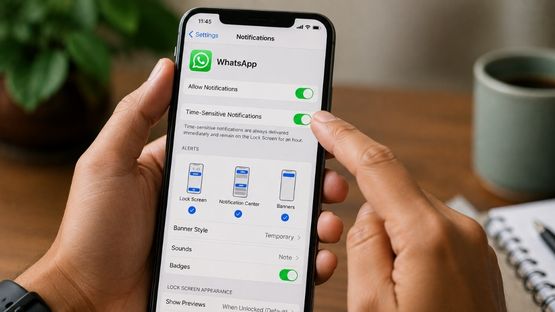
You can customize message, group, and call notifications in WhatsApp or set different notification preferences for individual chats and groups.
How to Change Notification Settings
Android
1. Open WhatsApp.
2. Tap More (⋮) > Settings > Notifications.
3. Adjust message, group, or call notifications, including:
- Notification tone
- Vibration
- Popup notifications
- Reaction notifications
- High priority notifications
iPhone
1. Open WhatsApp.
2. Go to Settings > Notifications.
3. Manage:
- Message and group notifications
- Notification sounds
- Reaction notifications
- Message previews
- In-app notifications
WhatsApp Web/Desktop
1. Open WhatsApp Web or Desktop.
2. Go to Settings > Notifications.
3. Enable or disable:
- Message notifications
- Reaction notifications
- Notification sounds
- Message previews
Customize Notifications for a Chat or Group
1. Open the individual chat or group.
2. Tap or click the contact or group name.
3. Select Notifications.
4. Choose to mute notifications, change the notification tone, or customize notification settings.
Important Notes
- Your device`s notification settings override WhatsApp settings.
- Muted chats still receive messages, but you won`t receive notifications.
- Locked chats display "WhatsApp" instead of the contact name in notifications to protect your privacy.
- All personal messages remain end-to-end encrypted.
Top Stories
-
 Nothing Denies Reports of Exiting Global Markets, Co-Founder Calls It 'Fake News'06/Aug/2026 1:03:45 PM
 -
 RBI Introduces New FD Rules for Small Finance Banks from October 106/Aug/2026 12:39:14 PM
 -
 Vadapalani-Poonamallee Metro Rail Service to Launch Soon06/Aug/2026 12:37:26 PM
 -
 Homemaker Home Garden Scheme Announced in Tamil Nadu Agriculture Budget06/Aug/2026 12:10:36 PM
 -
 Best Rooftop Dining Restaurants in Chennai06/Aug/2026 12:00:38 PM
 -
 10 Science-Backed Reasons Everyone Should Start Practicing Yoga06/Aug/2026 11:34:44 AM