
How to Back Up Your WhatsApp Chats on Android and iPhone
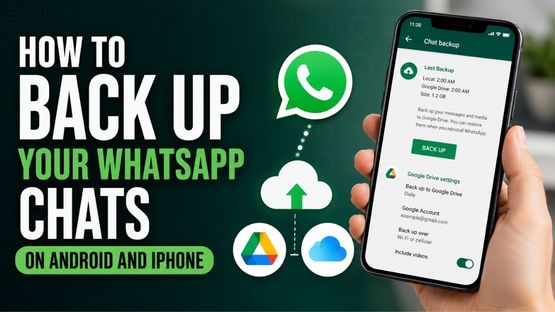
WhatsApp allows users to securely back up their chat history and media to the cloud, making it easier to restore conversations when switching devices or reinstalling the app. Android users can back up chats to Google Account, while iPhone users can use iCloud.
How to Back Up WhatsApp Chats on Android
Before creating a backup, ensure you have:
- A Google Account linked to your device.
- Google Play Services installed.
- Sufficient free storage on both your phone and Google Account.
- A stable internet connection.
To enable automatic backups:
1. Open WhatsApp and tap Settings.
2. Go to Chats > Chat Backup.
3. Select Back up to your Google Account.
4. Choose a backup frequency such as Daily, Weekly or Monthly.
5. Select the Google Account to store the backup.
6. Optionally choose whether backups should use Wi-Fi only or mobile data.
To create a backup immediately:
- Open Settings > Chats > Chat Backup and tap Back Up.
Users can also enable end-to-end encrypted backups by selecting End-to-End Encrypted Backup, creating a password, passkey or a 64-digit encryption key. This adds an extra layer of security, ensuring only the user can restore the backup.
How to Back Up WhatsApp Chats on iPhone
iPhone users can back up WhatsApp using iCloud.
Before starting, make sure:
- You`re signed in to the same iCloud account linked to your WhatsApp.
- Your iPhone is running the latest version of iOS.
- You have enough iCloud storage and device storage available.
To enable automatic backups:
1. Open WhatsApp and go to Settings.
2. Tap Chats > Chat Backup.
3. Select Auto Backup.
4. Choose the preferred backup frequency.
5. Optionally include or exclude videos from the backup.
To create a manual backup:
- Go to Settings > Chats > Chat Backup and tap Back Up Now.
U>Users can also activate end-to-end encrypted backups by enabling the feature in Chat Backup and creating a password, passkey or encryption key.
WhatsApp notes that chats and media can only be restored from the most recent successful backup, and users should safely store their encryption password or key, as it is the only way to access an encrypted backup in the future.
Top Stories
-
 Madras University Website Hacked: Student Data Security Concerns Raised24/Oct/2026 9:16:20 AM
 -
 Orange Alert Issued for Five Tamil Nadu Districts Today24/Oct/2026 9:11:40 AM
 -
 TNSTC Tambaram to Bengaluru Bus Timings: AC Economy and Regular Services23/Oct/2026 6:26:10 PM
 -
 Tomorrow Panchangam October 24, 2026 | Auspicious Timings, Rahu Kalam, Gulikai23/Oct/2026 5:51:42 PM
 -
 Best Areas Near Medavakkam, Chennai: A Guide to Nearby Residential and Lifestyle Localities23/Oct/2026 5:28:27 PM
 -
 Bigg Boss Tamil 10: Muniyamma’s 40 Sovereign Gold Jewellery Claim Sparks Debate23/Oct/2026 5:18:44 PM

 JB Soft System