
Uzhavan App in Tamil Nadu: How to Download and Use Its Services
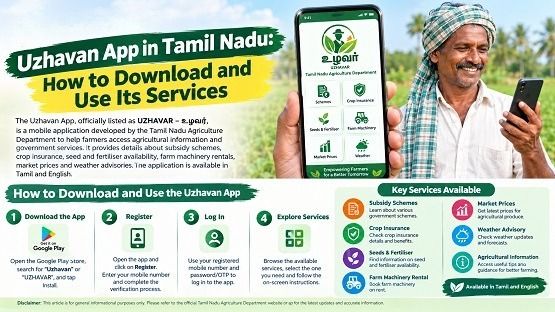
The Uzhavan App, officially listed as UZHAVAR – உழவர், is a mobile application developed by the Tamil Nadu Agriculture Department to help farmers access agricultural information and government services. It provides details about subsidy schemes, crop insurance, seed and fertiliser availability, agricultural machinery rentals, market prices and weather advisories. The application supports both Tamil and English.
How to Download the Uzhavan App
Farmers can follow these steps to download the official application:
1. Open the Google Play Store on an Android mobile phone.
2. Search for UZHAVAR – உழவர்.
3. Verify that the developer is listed as the Agriculture Department, Tamil Nadu.
4. Tap Install and wait for the download to complete.
5. Open the application and follow the on-screen instructions.
Official download link: https://play.google.com/store/apps/details?id=agri.tnagri
Farmers can also visit the Tamil Nadu Agriculture Department website to access agricultural information and related services.
How to Use the Uzhavan App
After opening the application, farmers can select the required service from the available menu. The following sections explain how to use its key features.
1. Check Government Subsidy Schemes
The subsidy scheme section provides information about agricultural assistance offered through various government departments.
- Open the subsidy scheme section.
- Select the relevant scheme or department.
- Review the eligibility criteria, benefits and application requirements.
- Follow the instructions provided to register or obtain further assistance.
The availability of schemes and benefits may vary according to the crop, location, eligibility criteria and current government guidelines.
2. Check Seed Availability
Farmers can use the seed availability feature to find information about seeds and seedlings at agricultural department outlets and other listed centres.
- Open the seed stock section.
- Select the relevant location or district, if required.
- Check the available seed varieties and stock details.
- Contact the concerned outlet to confirm availability before visiting.
This feature can help farmers plan their seed purchases before the sowing season.
3. Check Fertiliser Stock and Prices
The fertiliser stock feature provides information about fertilisers available at listed government, cooperative and private outlets.
- Open the fertiliser stock section.
- Select the required location or outlet.
- Check the available fertiliser types, stock details and listed prices.
- Confirm current availability with the seller before travelling.
4. Find Crop Insurance Details
The crop insurance section helps farmers understand insurance requirements and access available information about eligible applications.
- Open the crop insurance section.
- Select the relevant crop and location.
- Review the insurance premium details and required documents.
- If application tracking is available, enter the requested information to check the status.
Farmers should verify insurance deadlines, notified areas and eligibility conditions before applying.
5. Check Agricultural Market Prices
The market price feature allows farmers to review prevailing prices for agricultural commodities before taking their produce to market.
- Open the market price section.
- Select the relevant crop or commodity.
- Choose the required regulated market or location.
- Check the displayed prices and the date of the information.
- Compare prices across relevant markets before deciding where to sell.
Actual selling prices may vary depending on the quality and quantity of produce, market demand and local conditions.
6. Get Weather Forecasts and Agricultural Advisories
Weather forecasts and agricultural advisories can help farmers plan sowing, irrigation, spraying and harvesting activities.
- Open the weather advisory section.
- Select the relevant district or location.
- Review the available forecast and agricultural recommendations.
- Plan farm activities according to crop requirements and local weather conditions.
Farmers should also follow official weather warnings during periods of severe weather.
7. Find Agricultural Machinery for Rent
Farmers who require equipment for cultivation can use the machinery rental service to check available options.
- Open the agricultural machinery rental section.
- Select the relevant location or machinery category.
- Review the available equipment and rental details.
- Contact the listed centre or provider to confirm availability, charges and booking procedures.
8. Use the Farm Guide
The farm guide provides crop-related information to support farming activities from sowing to harvesting.
Farmers can select the relevant crop and review the available cultivation guidance. These recommendations can help them understand crop management practices, although the advice should be adapted to local soil conditions, weather and field requirements.
9. Get Pest and Disease Management Advice
The pest and disease management section provides information on identifying crop problems and understanding recommended control measures.
Farmers can select the relevant service and review the available guidance. Before applying pesticides or other crop treatments, they should confirm the problem and follow product label instructions and advice from qualified agricultural officers.
10. Contact Agricultural Officers
The agricultural officer contact service helps farmers find information about extension officers and their scheduled village visits.
Farmers can check the available officer details and contact information to seek guidance on cultivation practices, government schemes and other agricultural matters.
Other Services Available Through the Uzhavan App
Depending on the current version of the application, farmers may also find information about:
- Agricultural news and departmental announcements
- Reservoir water levels
- Organic farming and organic products
- Farmer Producer Organisation (FPO) products
- Uzhavan e-Market services
- Agricultural training and demonstrations
- Sericulture-related information
- Agricultural budget announcements
- Farmer feedback and suggestions
These services aim to make agricultural information more accessible through mobile phones.
Is the Uzhavan App Free to Download?
The UZHAVAR application is listed as a free download on the Google Play Store. Farmers should check the official listing for the latest version and any updated requirements.
Although the application provides access to agricultural information and selected registration facilities, some services may require supporting documents, eligibility verification or further contact with the relevant department.
What to Do If the Uzhavan App Is Not Working
If a feature does not load or the required information is unavailable, farmers can try the following steps:
1. Check the internet connection.
2. Update the application through the official app store.
3. Close and reopen the application, then try accessing the service again.
4. Visit the Tamil Nadu Agriculture Department website for related information.
5. Contact the relevant agricultural office if further assistance is required.
Disclaimer: This article is intended for general informational purposes only. Services, eligibility criteria and application procedures may change. Farmers should refer to official Tamil Nadu government sources for the latest information.
Top Stories
-
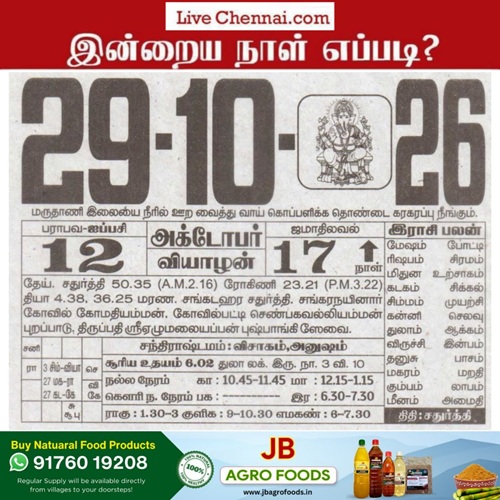 Tomorrow Panchangam October 29, 2026 | Auspicious Timings, Rahu Kalam, Gulikai28/Oct/2026 5:43:31 PM
 -
 Sale Agreement vs Sale Deed: What Property Buyers Must Know28/Oct/2026 5:28:44 PM
 -
 Freehold vs Leasehold Property: What Is the Difference?28/Oct/2026 5:25:21 PM
 -
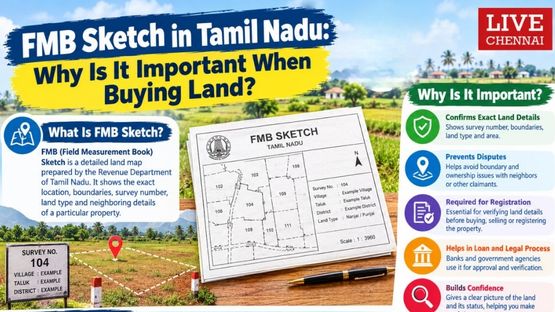 FMB Sketch in Tamil Nadu: Why Is It Important When Buying Land?28/Oct/2026 5:22:47 PM
 -
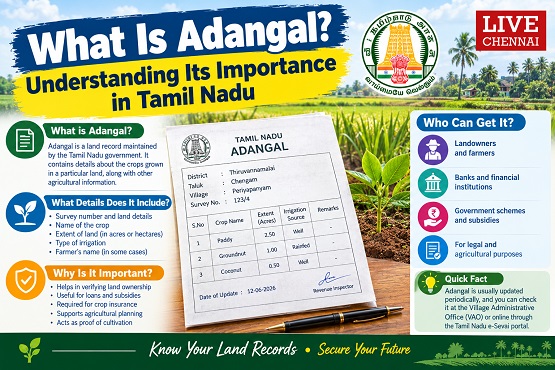 What Is Adangal? Understanding Its Importance in Tamil Nadu28/Oct/2026 5:18:55 PM
 -
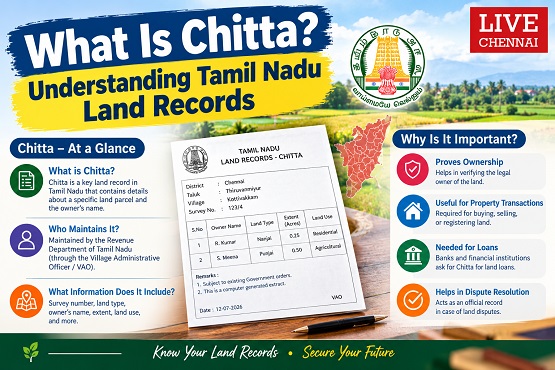 What Is Chitta?Understanding Tamil Nadu Land Records28/Oct/2026 5:09:41 PM

 JB Soft System