
WhatsApp Chat Lock: How to Lock and Unlock Private Chats
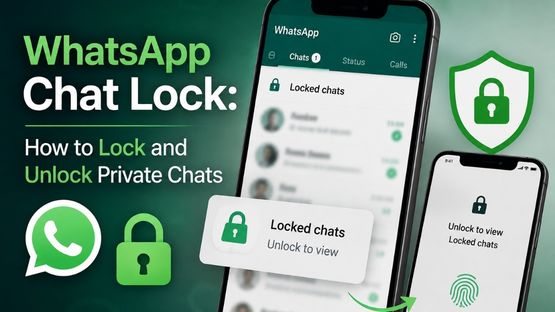
WhatsApp Chat Lock adds an extra layer of privacy by moving selected chats to a locked folder. You can protect chats using device authentication or a secret code.
How to Turn Chat Lock On or Off
Android and iPhone
1. Tap and hold the chat.
2. Select Lock chat or Unlock chat.
WhatsApp Web
1. Right-click the chat.
2. Select Lock chat or Unlock chat.
Locked chats are not visible in the regular chat list, and other participants are not notified when you lock a chat.
How to View Locked Chats
1. Swipe down on the chat list and tap Locked chats.
2. Unlock using your device authentication or secret code.
On WhatsApp Web, click Locked chats, enter your secret code, and click Continue.
How to Create a Secret Code
1. Open Locked chats.
2. Go to Settings > Secret code.
3. Enter your code and confirm it.
4. Tap Done.
You can also hide the locked chats folder so it only appears when you enter your secret code.
How to Unlock and Clear Locked Chats
If you forget your secret code, go to Settings > Privacy > Chat lock > Unlock and clear locked chats.
This removes the secret code and returns the chats to your regular chat list, but it also deletes the messages, photos, and videos stored in locked chats. You may restore them from a backup created before the chats were cleared.
WhatsApp Chat Lock Notifications
Notifications from locked chats display “WhatsApp” or “WhatsApp: 1 new message” instead of the contact`s name. This helps protect the privacy of your messages.
Top Stories
-
 PM Modi and Tamil Nadu CM Vijay Travel Together on Newly Inaugurated Chennai Metro Corridor11/Oct/2026 1:27:28 PM
 -

-
 Tomorrow Panchangam October 12, 2026 | Auspicious Timings, Rahu Kalam, Gulikai10/Oct/2026 5:36:28 PM
 -
 Tomorrow Panchangam October 11, 2026 | Auspicious Timings, Rahu Kalam, Gulikai10/Oct/2026 5:34:06 PM
 -
 Chennai Traffic Diversions on October 11 for PM Modi’s Visit10/Oct/2026 5:30:49 PM
 -
 Grand Golu Exhibition Featuring 4,000 Dolls to Begin in Kolathur10/Oct/2026 5:22:10 PM

 JB Soft System